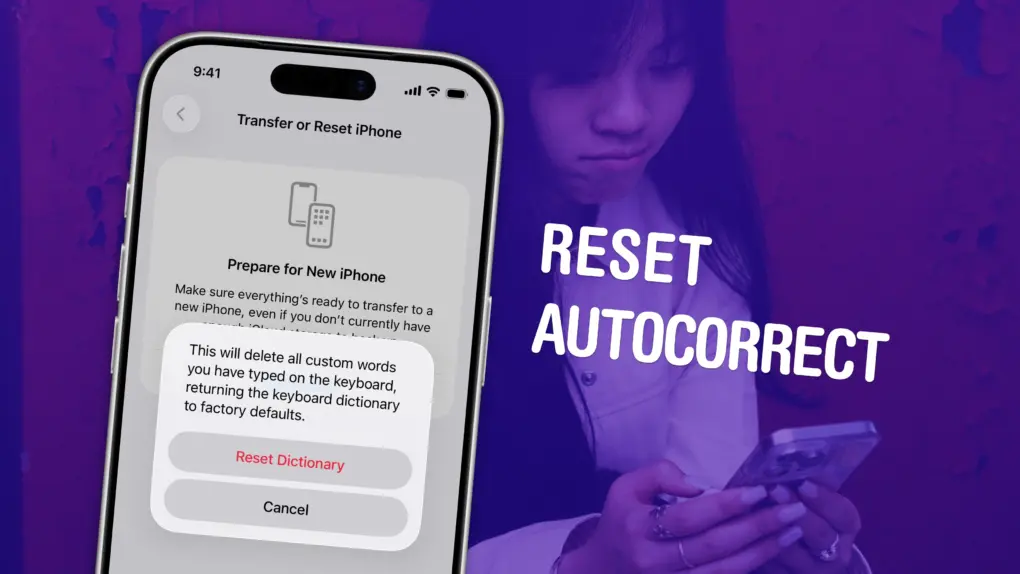
If you’ve noticed that the iPhone’s autocorrect has been especially bad over the last few months, you’re not alone. It appears that iOS 26.2 introduced a bug that made the keyboard much more frustrating to use. Luckily, the solution is simple. You can learn how to reset autocorrect on your iPhone really quickly.
First, you need to update to iOS 26.4, the release that fixed the iPhone’s autocorrect bug. Then, resetting your keyboard dictionary will get rid of any bad patterns it may have picked up since December.
Keep reading or watch our quick video.
How to reset autocorrect on iPhone
The iPhone‘s autocorrect feature is supposed to be smart. It’s supposed to be helpful. It’s not supposed to drive you half-mad by constantly changing what you’re trying to type into something else entirely.
Autocorrect builds a personal dictionary for you over time. It adds the names of your contacts, the apps on your iPhone, and other proper nouns relevant to you. If you spell and capitalize a word a specific way, it should learn that automatically.
However, autocorrect can be frustrating if it adds a last-minute typo in the split second before you send an important text or email. (See also: Unsend and edit iPhone messages after you send them.)
If you want to start over, and undo any weird spellings added to your custom dictionary, you can reset autocorrect on your iPhone from the Settings app.
Update to iOS 26.4
iOS 26.4 included a fix for the autocorrect problems introduced in iOS 26.2. You can install it in Settings > General > Software Update. It’s available for all the same devices as iOS 26.
However, updating to iOS 26.4 alone might not be enough to fix your autocorrect problems. Your iPhone might have learned some incorrect patterns while it was broken. If you’re experiencing autocorrect problems, you should reset your personal iPhone dictionary.
How to reset autocorrect in Settings
Screenshot D. Griffin Jones/Cult of Mac
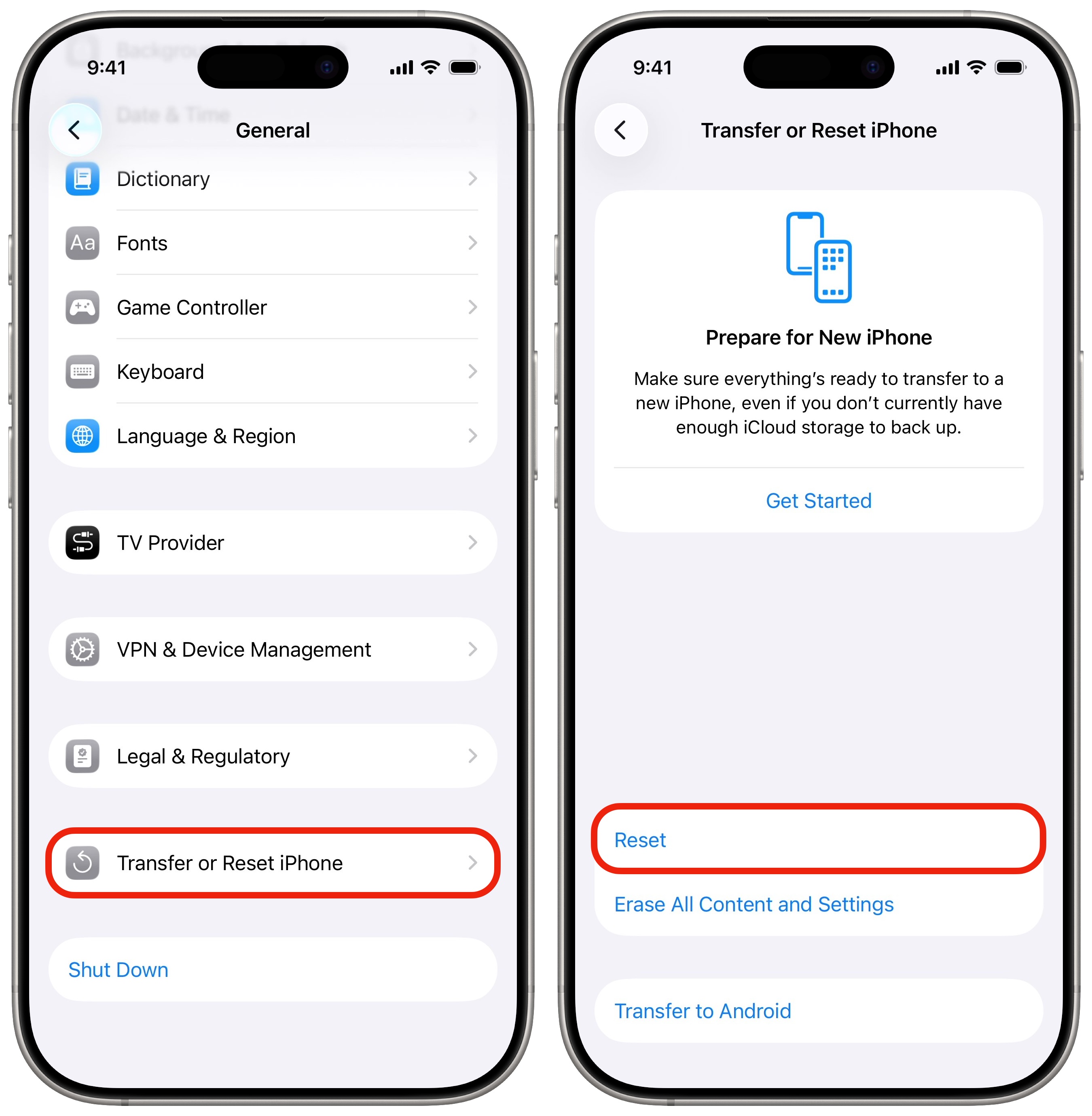
After updating your iPhone to iOS 26.4, head over to Settings and tap General. Scroll down to the very bottom and tap Transfer or Reset iPhone.
Be very careful on this screen. You don’t want to fat-finger your way into deleting your eSIM or erasing your data.
Screenshot: D. Griffin Jones/Cult of Mac
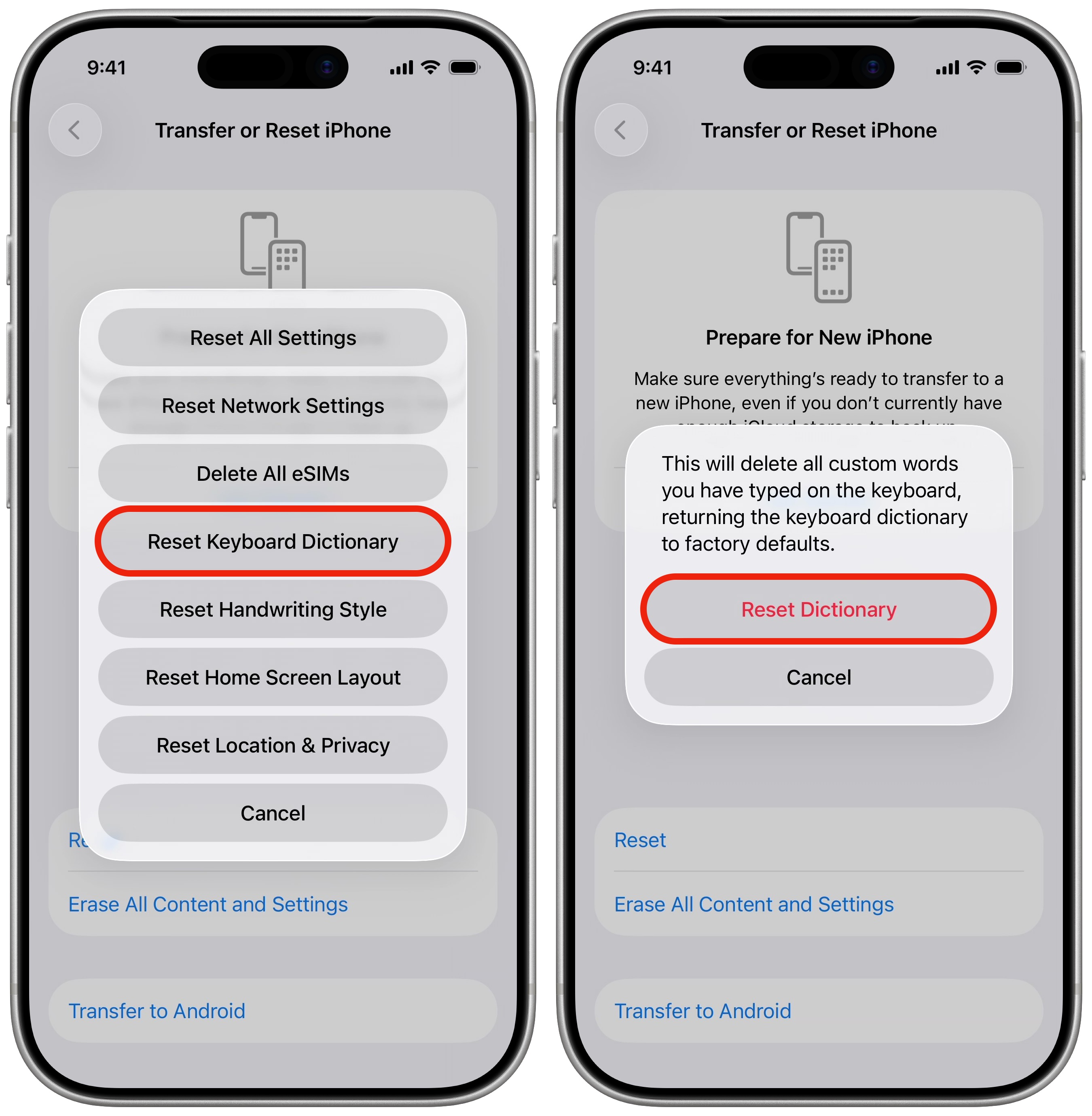
Tap Reset, and from the list of options, tap Reset Keyboard Dictionary. You’ll be asked to type in your passcode. Then, you’ll be warned one last time. Tap Reset Dictionary to confirm.
After that, your iPhone won’t need to reboot or anything. That’s it. Hopefully, autocorrect will work better for you going forward.
More iPhone tips
Now that you know how to reset autocorrect on your iPhone, check out these other pro tips:
- Create Focus modes to customize notification settings for different times of day, like work, vacation, driving, personal time and more.
- Reset your iPhone with your old passcode — up to three days later — if you forget your new one.
- Customize your iPhone’s Action button to toggle the flashlight, open the camera, run a custom shortcut and more.
- Hide and lock apps with Face ID (or Touch ID) so they can’t be opened (or seen on your iPhone) by anyone else.
- Play ambient music or background sounds while you work for distraction-free tunes and vibes.

D. Griffin Jones is a writer, podcaster and video producer for Cult of Mac. Griffin has been a passionate computer enthusiast since 2002, when he got his first PC — but since getting a Mac in 2008, he hasn’t turned back. His skills in graphic and web design, along with video and podcast editing, are self-taught over 20+ years. Griffin has a bachelor’s degree in computer science and has written several (unpublished) apps for Mac and iOS. His collection of old computers is made up of 40+ desktops, laptops, PDAs and devices, dating back to the early ’80s. He brings all of these creative and technical skills, along with a deep knowledge of Apple history, into his work for Cult of Mac.

